Photography
How to Install the Samaro Lightroom Plugin: Complete Setup & Publishing Guide (2026)
Publish Straight From Lightroom to Your Samaro Gallery. No Exporting, No Re-Uploading.
If you shoot on Lightroom Classic, you already know the drill after every shoot: cull, edit, export to a folder, then log into your gallery platform to upload everything a second time. That last step doesn't add anything creative to your work. It's just time spent moving files from one place to another, and it happens after every single event.
The Samaro Lightroom Classic plugin removes that step completely.
Once it's installed and connected through Lightroom's Publish Services, your Samaro events and sub-events show up directly inside your catalog. You import, cull, and edit exactly the way you always have. When you're ready to share your work, you publish from Lightroom, and the images appear in your client's Samaro gallery automatically. No exporting to a folder first. No opening a browser to upload. No switching between apps to get a gallery live.
This guide walks through the entire process end to end: downloading and installing the plugin, connecting your Samaro account, creating events and sub-events without leaving Lightroom, and publishing your first edited gallery, including how to edit already-published images and restore originals whenever you need them.
Before You Start
You'll need:
Adobe Lightroom Classic (LRc). The plugin works with Lightroom Classic only, not the cloud-based Lightroom.
An active Samaro account with at least one event created.
Your login details on hand. You can sign in to the plugin with OTP or Google.
What This Guide Covers
By the end of this walkthrough, you'll know how to:
Download and install the Samaro.lrplugin file through Lightroom's Plug-in Manager
Connect your Samaro account via Publish Services and sync your existing events
Create new events and sub-events (Published Collection Sets and Published Collections) directly from Lightroom
Import, edit, and publish images so they land straight in your Samaro gallery
Restore original, unedited images at any time from Settings / Edited Originals
Step 1: Open the Add Media panel
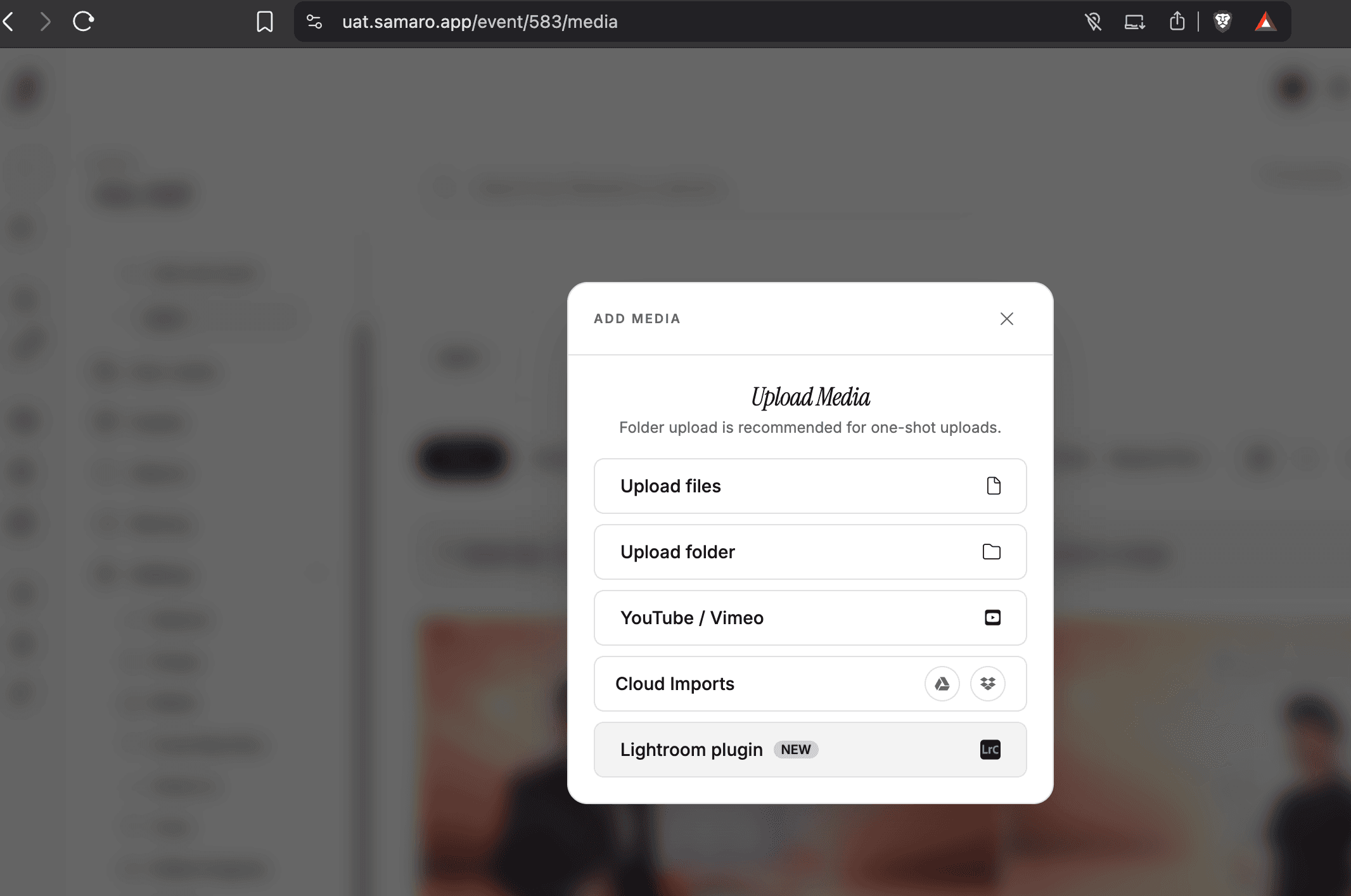
Inside your event, open the Media section and click Add Media. In the upload options, you will see Lightroom plugin marked NEW. Click it to begin.
Step 2: Download the latest plugin version
You will see the latest version of the Samaro Lightroom plugin. Download it to your computer.

Step 3: Open the Plug-in Manager in Lightroom Classic
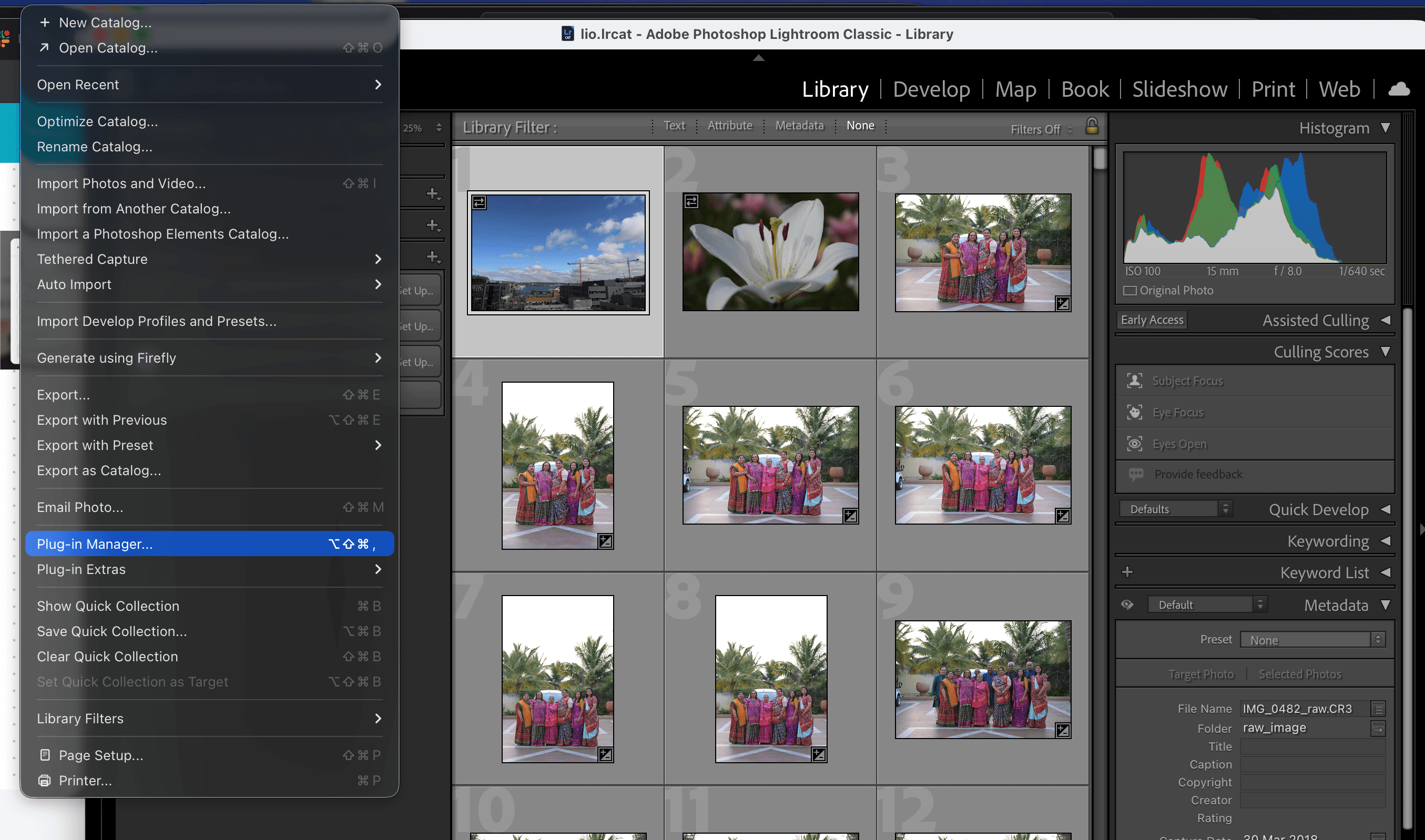
Open Lightroom Classic (LRc) and go to File → Plug-in Manager.
Step 4: Click Add
In the Plug-in Manager window, click the Add button in the bottom-left.

Step 5: Select the Samaro plugin file
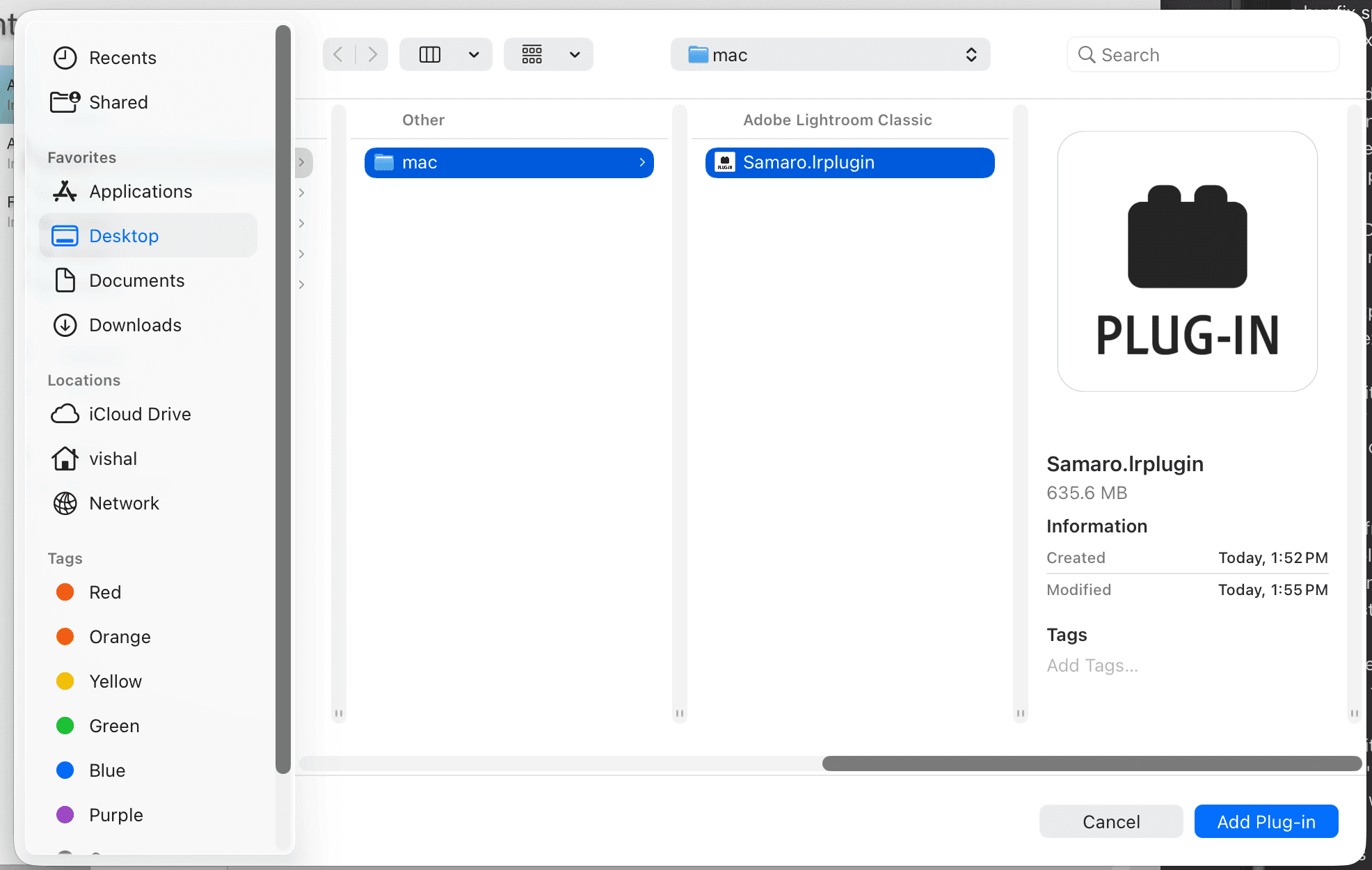
Navigate to where you downloaded the plugin and select it. The file extension will be Samaro.lrplugin.
Step 6: Confirm the plugin is installed
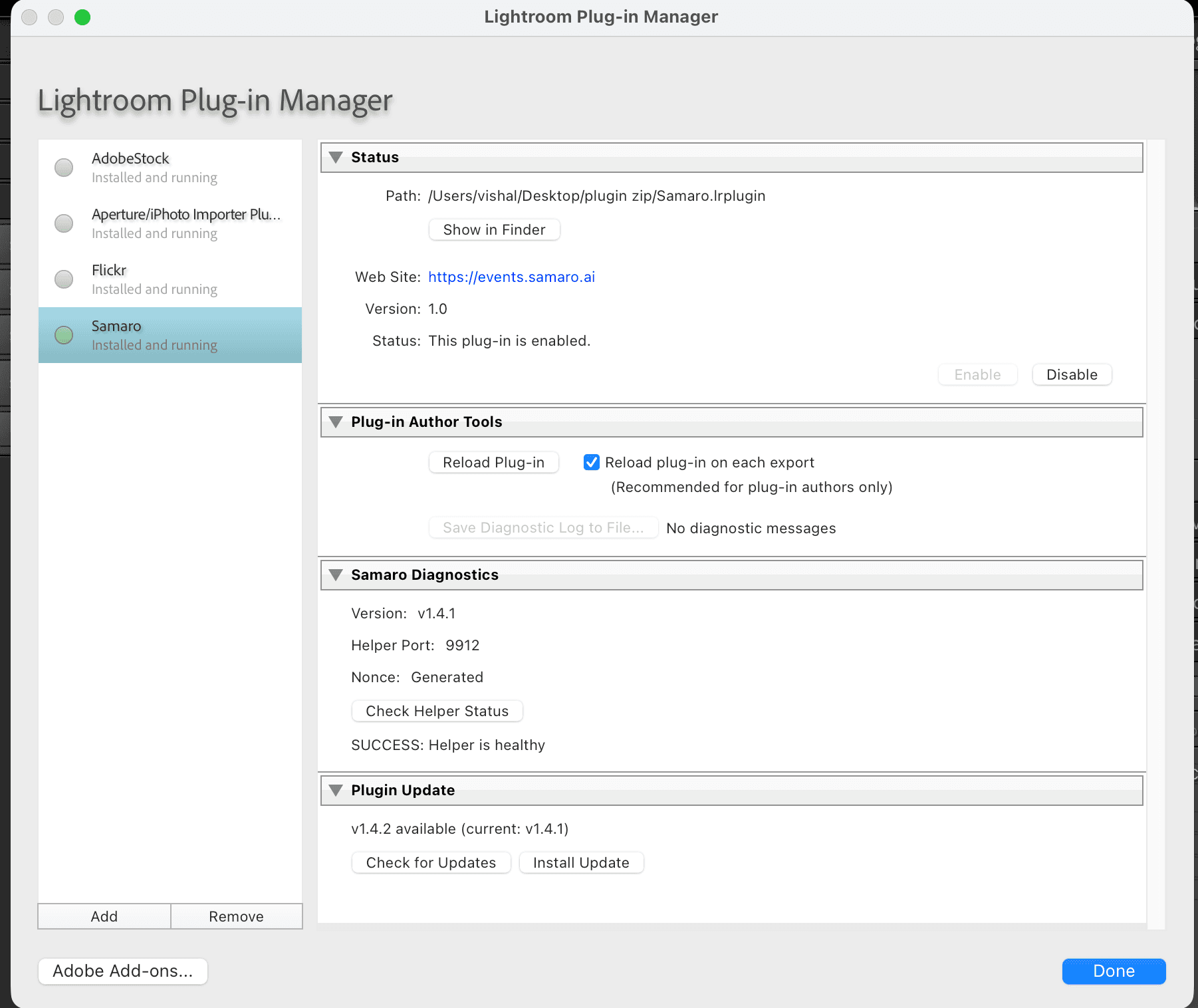
Once added, you will see Samaro listed in the Plug-in Manager with the status Installed and running.
Step 7: Keep the plugin up to date
Always check for the latest version of the plugin and update it accordingly to get new features and fixes.
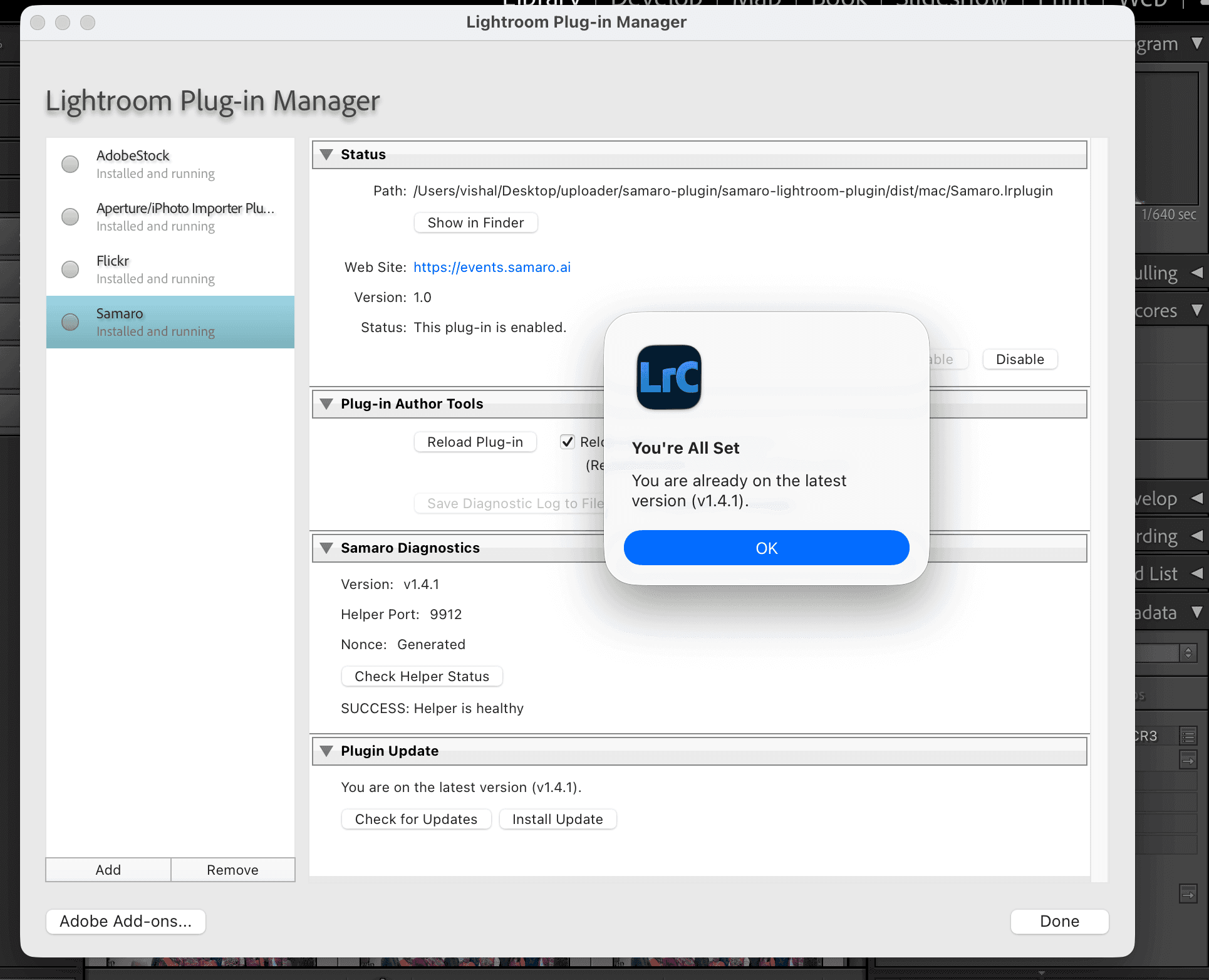
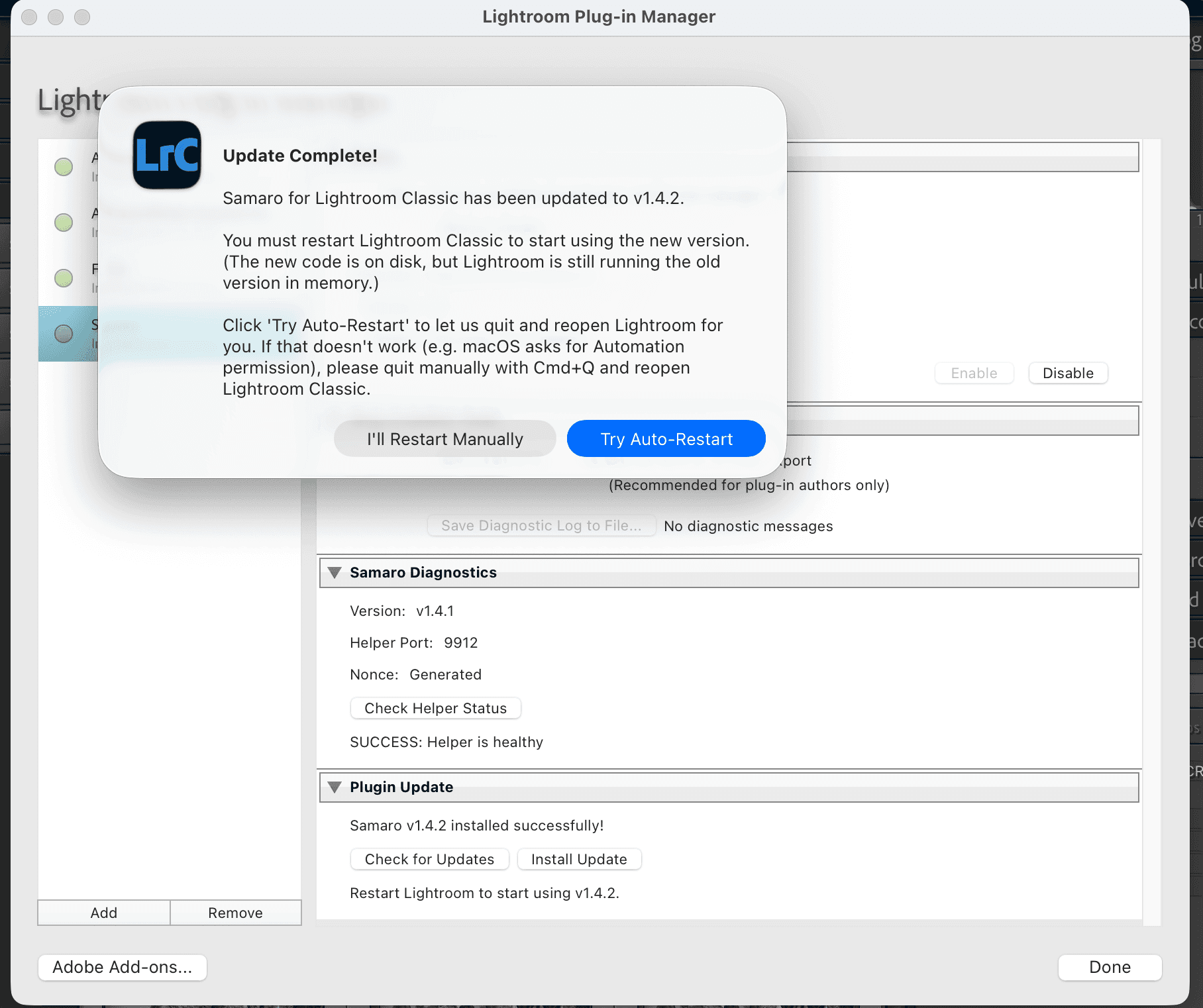
Step 8: Restart Lightroom after updating
While updating and completing the process, kindly restart Lightroom manually so the changes take effect.
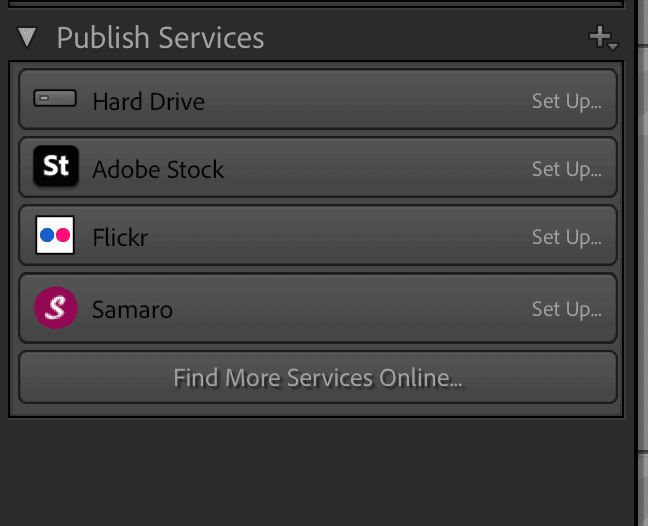
Step 9: Open Samaro from Publish Services
In the left panel under Publish Services, find the Samaro logo and double-click it.
Step 10: Log in and sync your events
Log in via OTP or Google. Once signed in, click Sync Events and save.

Step 11: View your events, or create a new one
All your existing events and sub-events become visible. To create a new event directly from Lightroom, click Create Published Collection Set.
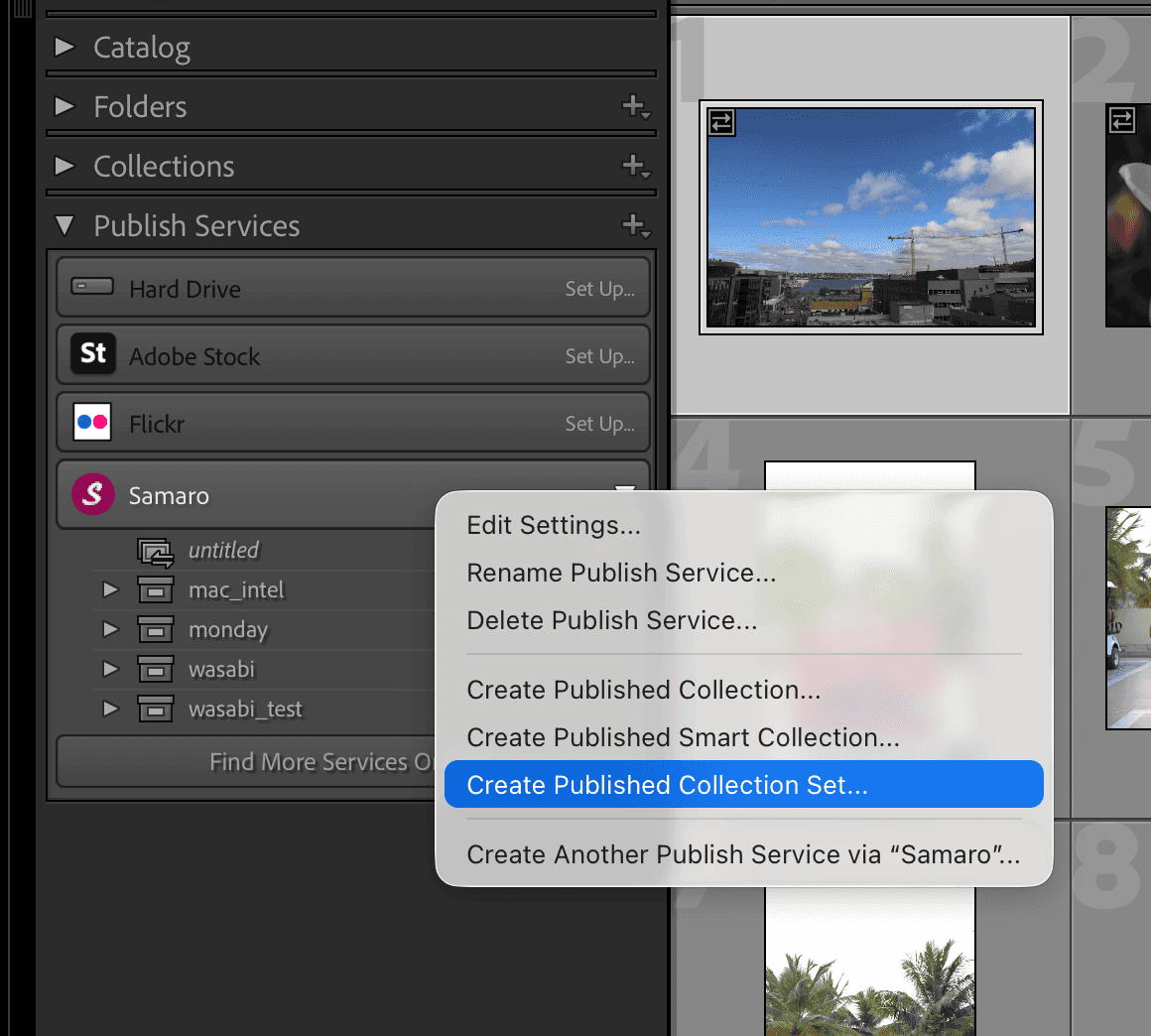
Step 12: Name the event (keep Set as None)
Give your event a name. Always keep the Set value as None, then click Create.
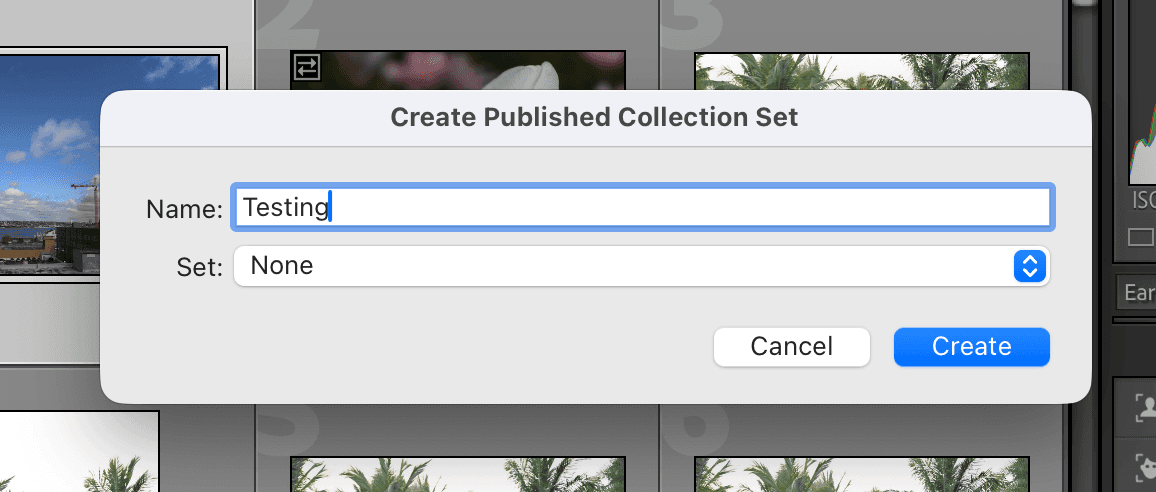
Step 13: Create a sub-event
To create a sub-event, right-click on the event you want it under and select Create Published Collection.
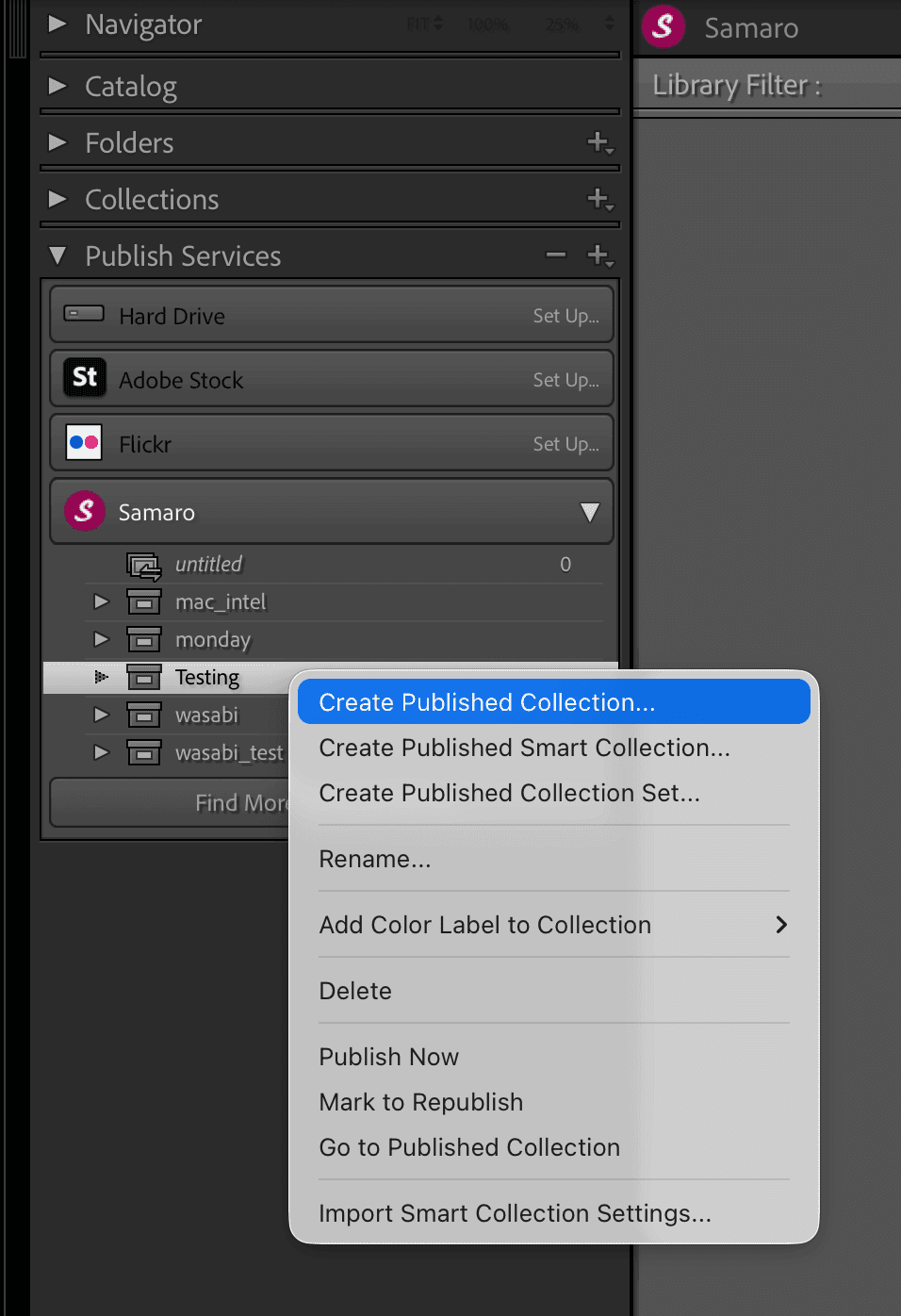
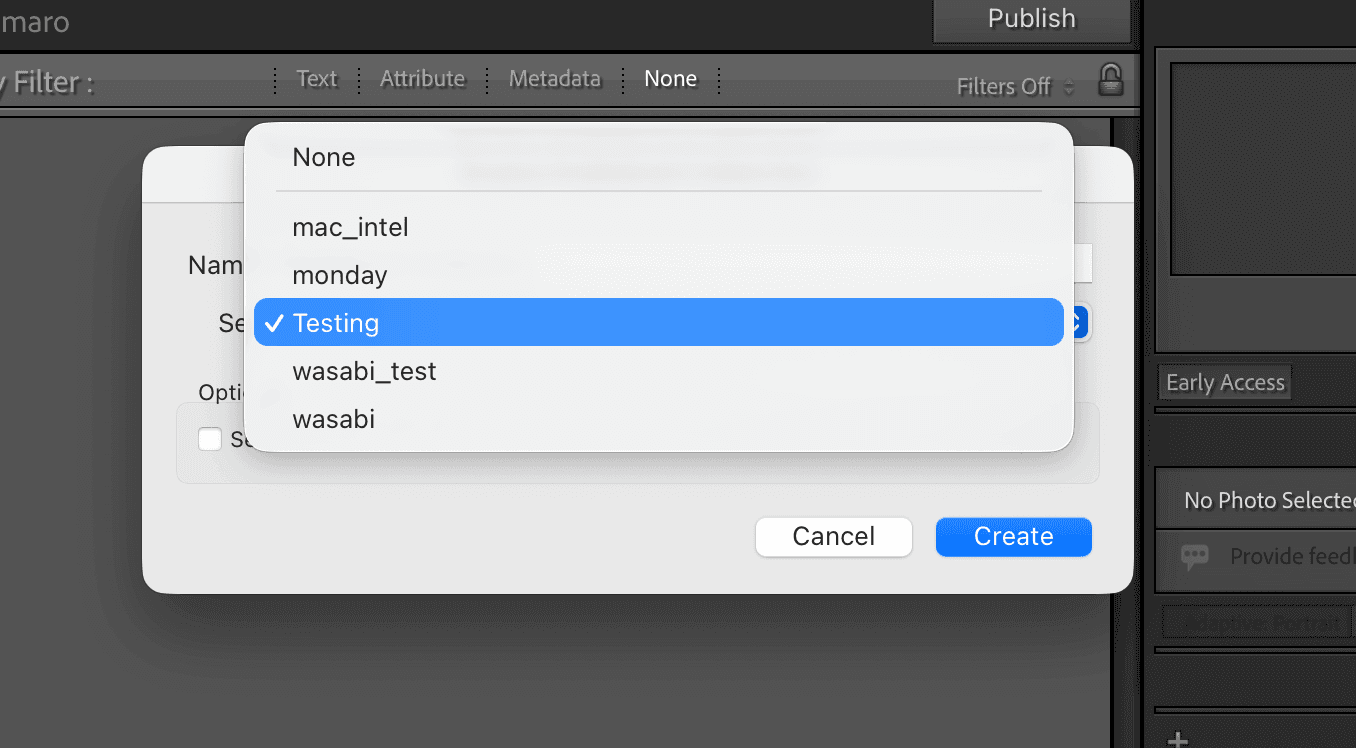
Step 14: Choose the parent event for the sub-event
Select the existing event in which you want to create the sub-event.
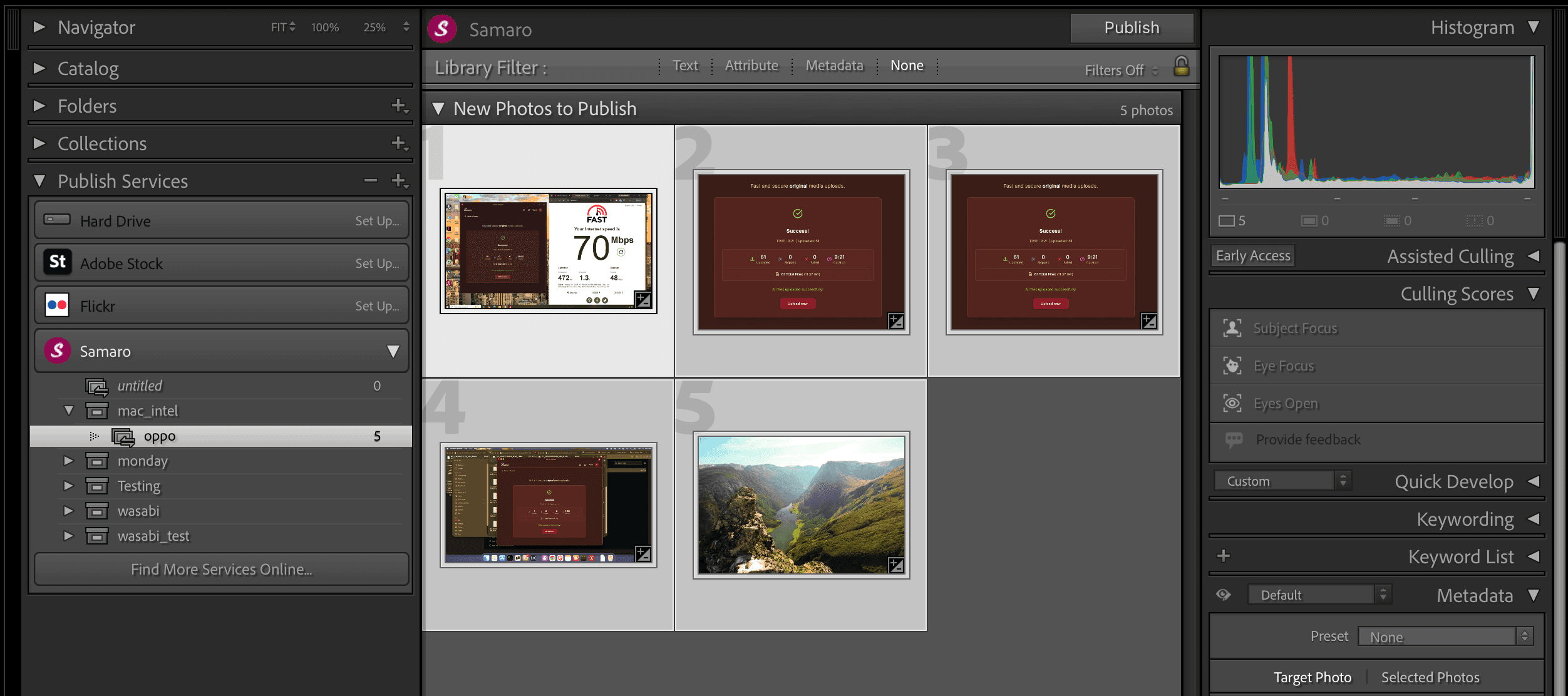
Step 15: Import and assign your images
After importing images from local storage, simply drag and drop the selected images into the desired sub-events.
Step 16: Publish and view the result
Once you Publish (Upload), the result page becomes visible with your uploaded images.
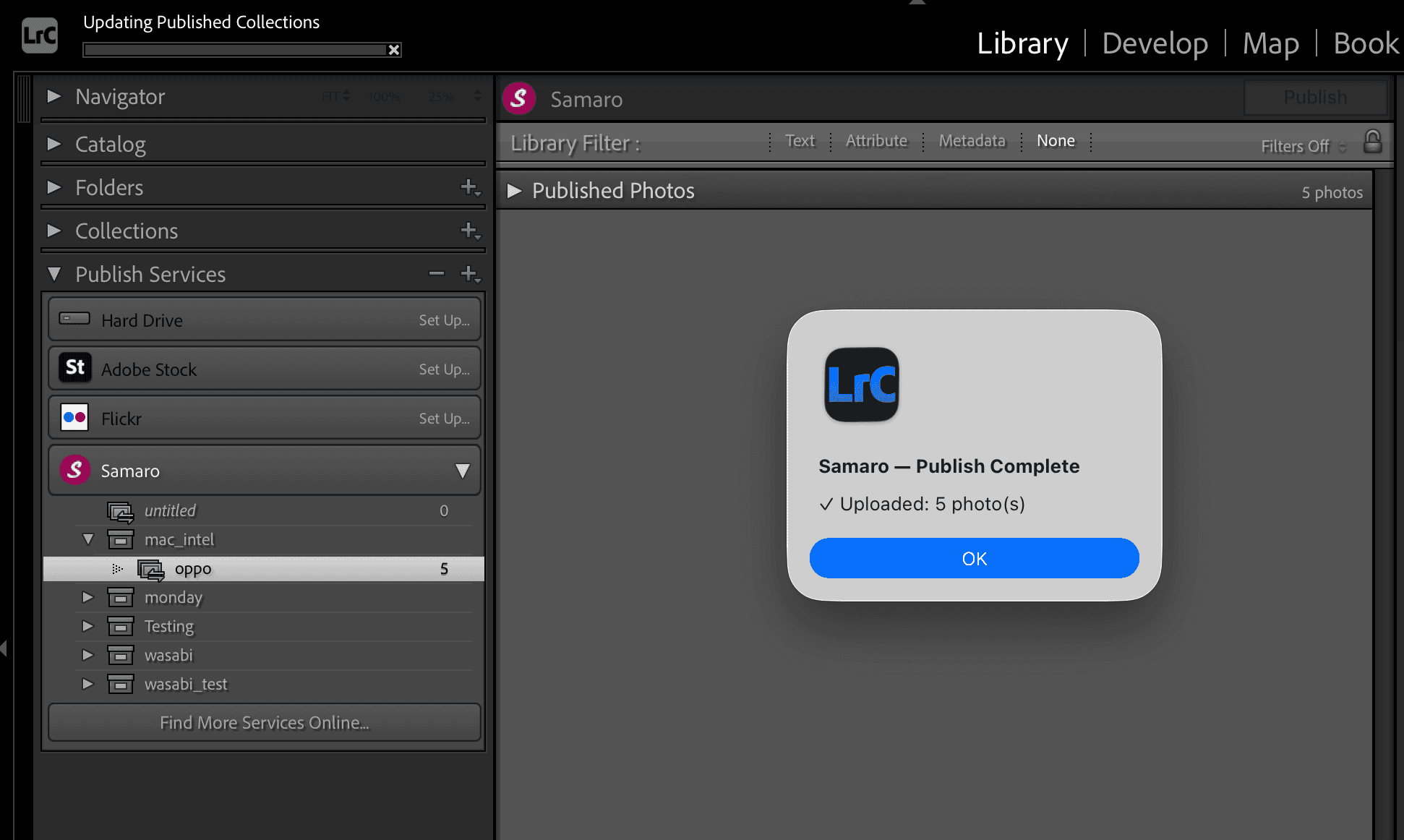
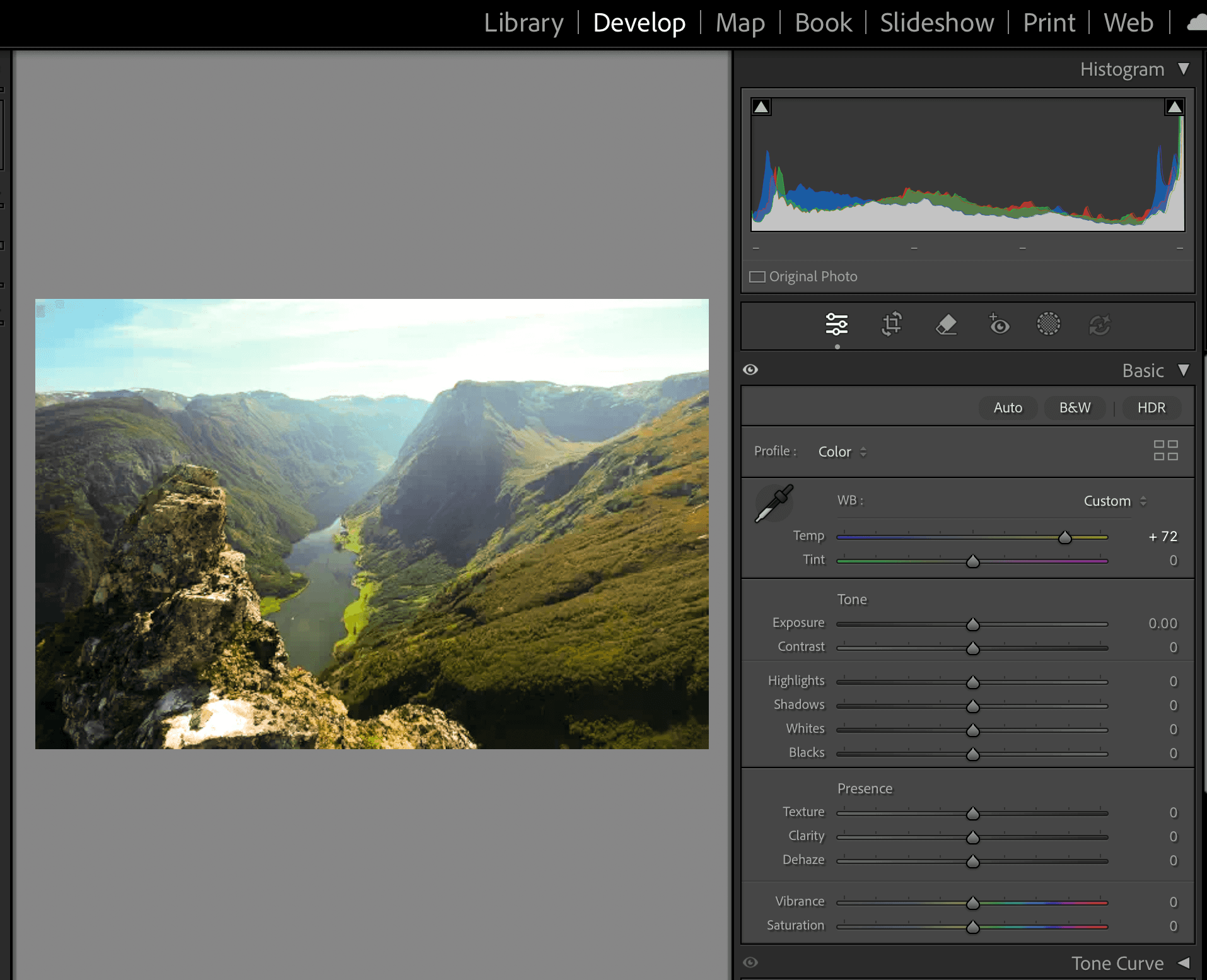
Step 17: Edit in Develop, then publish from Library
To edit images, switch to the Develop module. After editing, switch back to Library to upload (Publish) again.
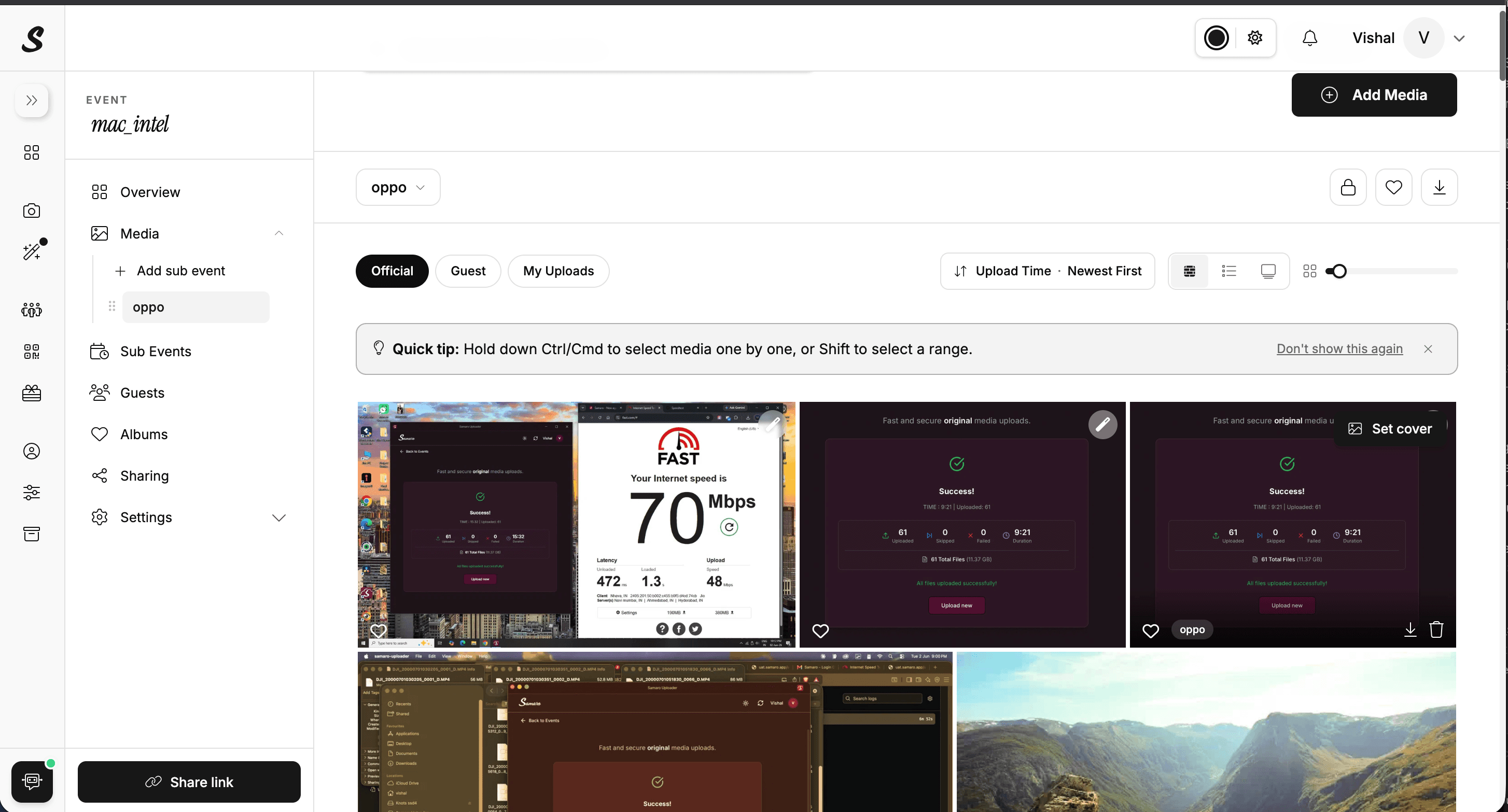
Step 18: See edited images in the Samaro gallery
After uploading, visit the Samaro web UI and you will see the edited images in your gallery.
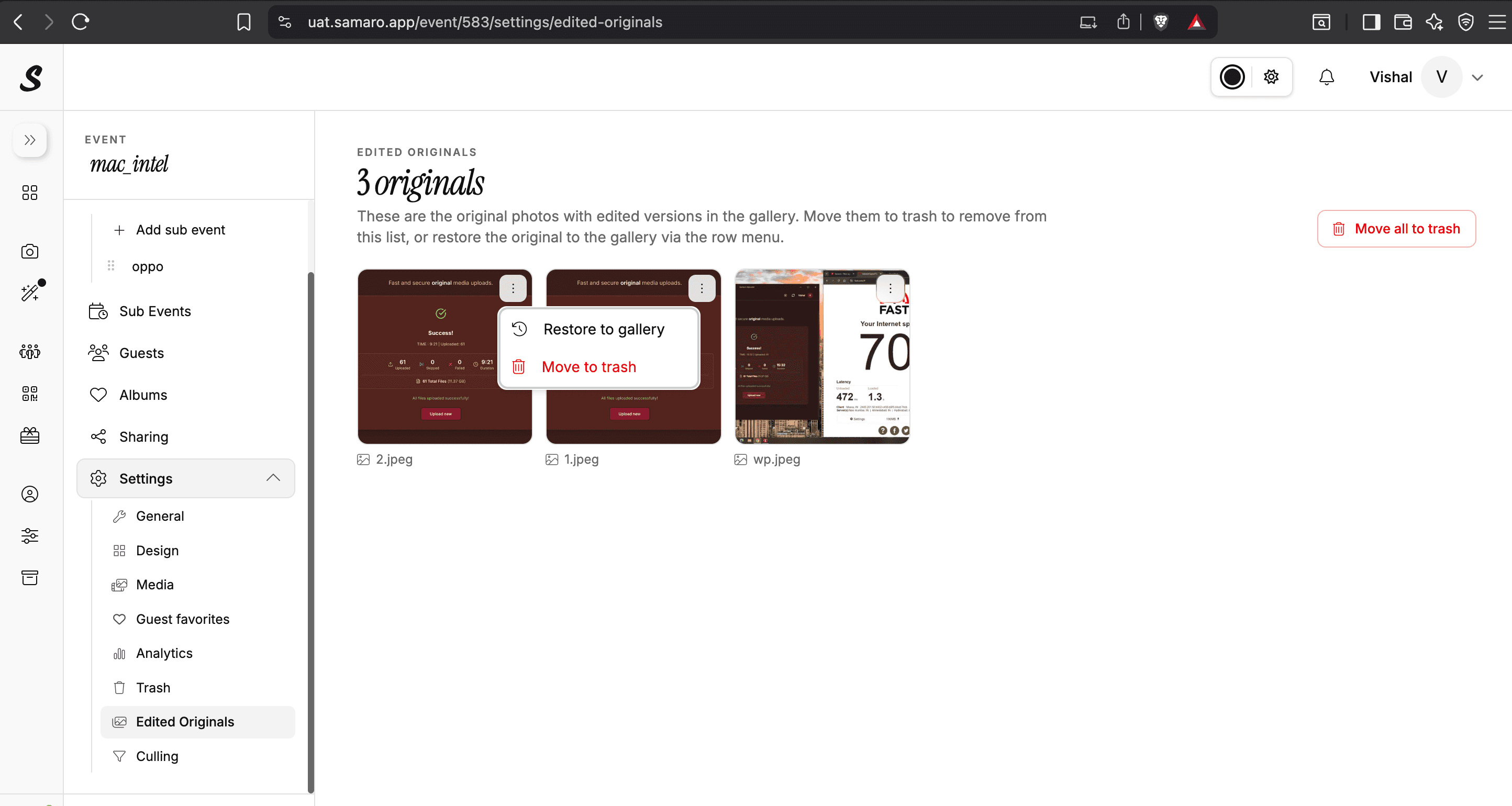
Step 19: Restore originals any time
Your original images are kept under Settings / Edited Originals. You can restore the originals while keeping the edited versions in your gallery.
That's It
Your Lightroom catalog is now wired directly into Samaro. From here, every shoot follows the same quick loop: import, cull, edit in Develop, then publish from Library and your client gallery updates automatically. Originals stay safe under Edited Originals, so you can always roll back.
Guest/Host Login